1Install & first launch
Grab FT8AF from the GitHub releases page as a free APK, or from Google Play for $3.50 — the apps are identical. Full install instructions live on the Download page.
The first time you open FT8AF, Android will ask for two permissions:
- USB device access — needed for CAT control and rig audio. Choose Always if you want the app to auto-reconnect when you replug the cable.
- Microphone — needed if you ever want to decode from the phone's mic instead of a wired radio. You can deny this if you only run USB.
2Set your callsign & grid
Open the Settings tab and fill in the operator card at the top. These two fields drive everything the app transmits, so it's worth getting right before you key up.
- Callsign
- Your licensed callsign. Suffix portable indicators with a slash (e.g.
K1AF/M) if you're operating mobile or portable. - Grid square
- 4- or 6-character Maidenhead locator (e.g.
FN42orFN42hk). FT8AF will offer to fill it from GPS if location is granted. - Audio frequency
- Your transmit audio frequency in Hz, inside the 3 kHz FT8 segment.
1500is a sane starting default. - TX delay
- Milliseconds the app waits after PTT before sending tones.
400works for most CAT-controlled rigs.
3Connect your radio
FT8AF talks to your rig over a single USB-C connection — both CAT (frequency, PTT) and audio (RX, TX) ride on the same cable. Modern Android phones connect directly with USB-C; older devices need a USB-OTG adapter. Your phone must support USB host mode.
- Plug in. Connect your phone to the rig's USB port. Android will prompt for permission to talk to the device — accept it, and tick Always so the app can reconnect later.
- Pick your rig. In Settings → Radio, open the Rig model picker and choose your transceiver (IC-7300, FT-891, IC-705, etc.). FT8AF includes a fix that forces the FT-891 to 3000 Hz bandwidth in DATA-USB — you don't need to set that yourself.
- Set control mode to CAT. Under Control, choose CAT. (VOX, RTS, and DTR are available if your setup needs them, but CAT is what you want with a modern HF rig over USB.)
- Confirm CI-V / baud rate. The defaults usually match — Icom rigs default to
A4at115200; Yaesu rigs have their own conventions. If CAT won't connect, this is the first place to check. - Pick a band. Tap the band chip on the Decode tab to switch between 160m–6m FT8 segments, or punch in a custom frequency from Settings → Radio → Frequency.
No rig? You can still explore.
If you grant the microphone permission, FT8AF will decode audio from your phone's mic — hold it up to a speaker hooked to any FT8-active radio and you'll see the same decode list. Useful for learning the UI before you wire up CAT.
4Decode the band
The Decode tab is where you'll spend most of your operating time. Every 15 seconds, at the FT8 period boundary, the app processes the last slot of audio and drops the new decodes into the list. Stations get status pills — New DXCC, Needed, Worked, Confirmed — so the band tells you what to chase at a glance.
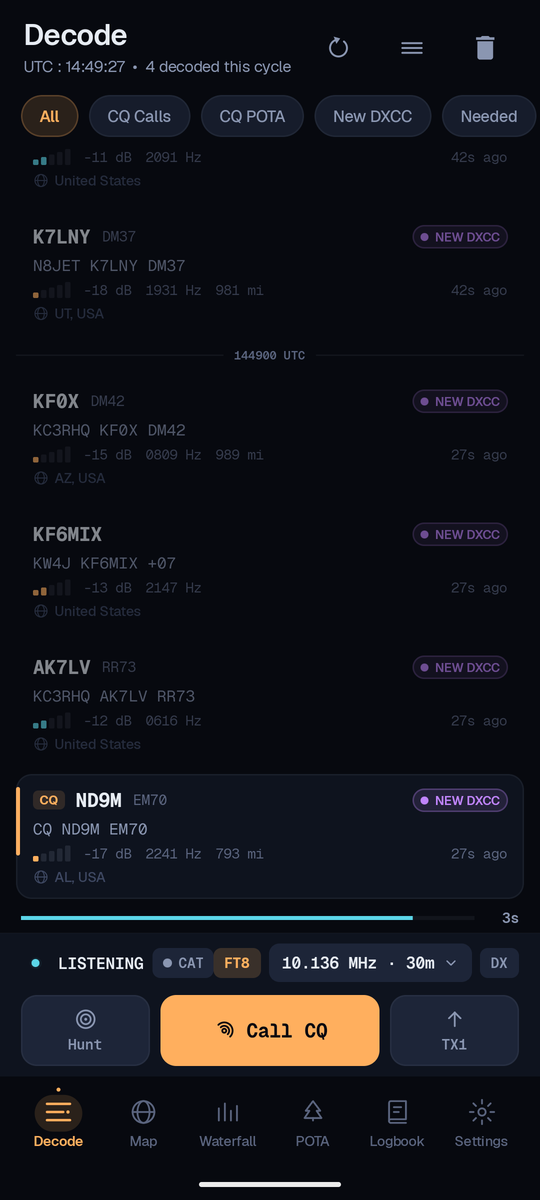
Each row tells you:
- SNR / dB
- Signal-to-noise ratio. Values from roughly
−24(barely decodable) to+15(very strong). - Audio Hz
- Where the signal sits inside the 3 kHz segment. Tap a row or signal on the waterfall to make this your TX audio frequency.
- Distance
- Great-circle distance from your grid to the decoded station, when their grid is known.
- Status pill
- New DXCC = entity you've never worked. Needed = needed on this band/mode. Worked = QSO complete but not yet confirmed.
- ↳ To you
- Highlighted in cyan when a station is directly answering you. You'll see this during your own QSOs.
5Read the waterfall
The Waterfall tab shows the full 3 kHz FT8 passband over time. Newer audio is at the top, older at the bottom — a thin line marks each FT8 period boundary with a UTC timestamp drawn beside it, so you can read timing at a glance.
Tap-to-tune. Tap any visible signal in the waterfall to set your TX audio frequency to that slot. The TX marker stays locked to your actual TX audio thanks to the alignment fix in FT8AF.
6Call a station
You have two ways into a QSO:
- Answer a CQ. Tap a
CQrow in the decode list, or tap that station's signal on the waterfall. FT8AF queues a response and waits for the next TX slot. - Call CQ yourself. Hit the CQ button on the TX strip at the bottom of the screen. Use the TX1 / TX2 toggle to pick which 15-second slot you want to transmit on — the empty one, generally.
Watch the Active QSO monitor panel above the TX strip. It tracks who you're working and what step of the auto-sequence you're at. If multiple stations come back to your CQ, the caller queue keeps the others lined up — you finish the current QSO instead of bouncing to whoever's loudest.
7Run the auto-sequence
FT8AF handles the standard FT8 exchange automatically once you've selected a target. You'll see the panel step through:
If you need to bail mid-QSO, tap Stop on the TX strip — the app drops the queue and goes back to listening. The TX1 / TX2 slot toggle lets you flip transmit periods without losing your target.
8Logging & uploads
Every completed QSO is written to the on-device Logbook tab. If you've configured upload services, it also flies up to them the moment the contact closes — no ADIF export, no copying calls by hand at the end of the night.
−18 / −09
−06 / −11
−12 / −15
Cloudlog
Open Settings → Cloudlog, paste your Cloudlog URL and API key, and toggle the service on. New QSOs upload automatically. If a contact fails to upload, it stays in the logbook with a retry indicator.
QRZ
Open Settings → QRZ, sign in with your QRZ Logbook API key, and toggle uploads on. Same automatic behavior as Cloudlog.
You can run both at once — most operators do, with Cloudlog as their primary log and QRZ for visibility.
9Field tips
- Set your clock from the network before each session. FT8 demands accurate timing — Android's automatic time is usually fine; if you're somewhere without signal, sync from GPS or NTP.
- Use the hardware volume buttons to set TX drive level mid-QSO. FT8AF maps them to TX volume so you don't have to fiddle with the on-screen slider while transmitting.
- Watch the QSO monitor when conditions are crowded. The caller queue prevents the classic "two stations both think you came back to them" mess.
- Use the Map tab to spot openings visually — CQ callers get a megaphone marker, so you can see which paths are coming in without scanning the decode list.
- Star the GitHub repo if you want a nudge when a new release lands. Or grab the Play Store build and updates happen by themselves.
Something not behaving?
Read the next page: it walks you through capturing the debug log so we can actually fix what you ran into. Reporting a bug →